
Listing Maps and Coordinates
Every listing map is placed using the listing's Coordinates (latitude and longitude). This article explains where they come from and how to adjust them.
Setting the pin on the edit screen
Edit a listing and find the address fields in the Property Address box. Under Coordinates there's an OpenStreetMap map.
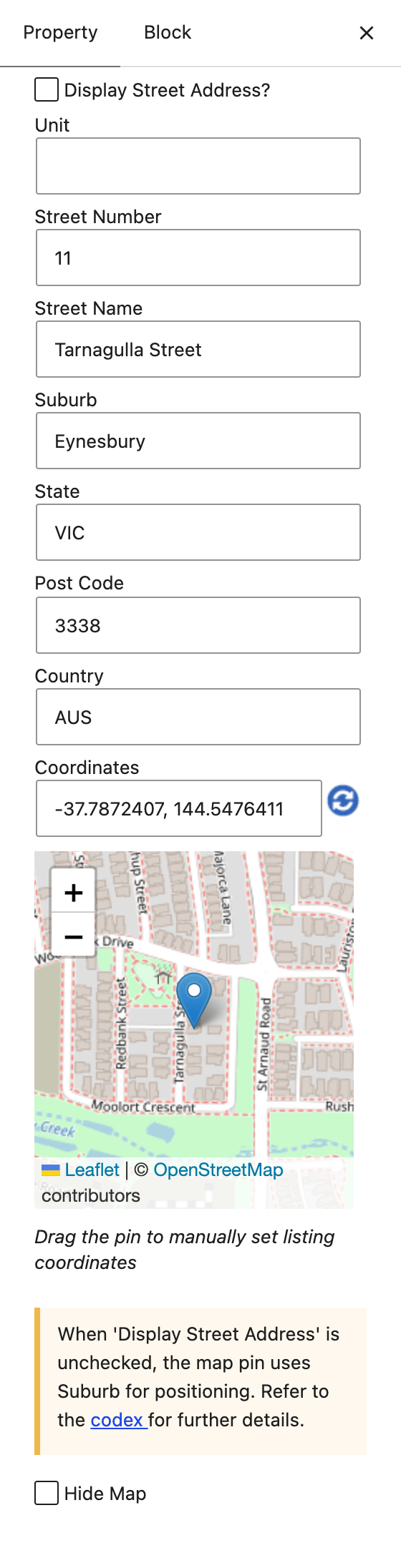
- Look up the address: fill in the address fields and click the blue refresh button next to Coordinates. The pin moves to the address and the coordinates are filled in.
- Fine tune: drag the pin, or click anywhere on the map, to move it exactly onto the property. Handy for new estates and rural blocks.
- Type or paste coordinates: enter them as
-37.7872407, 144.5476411and the pin moves to match.
Save or update the listing to keep the coordinates. If you save a listing with an address but no coordinates, they're looked up automatically.
Listings without coordinates
Imported listings often arrive without coordinates. The first time someone views one, its address is looked up and the coordinates are saved, so the map shows straight away and every later view is instant.
To do all listings at once, use Looking up coordinates for all listings.
Display Street Address
The Display Street Address? checkbox in the address box controls what the map shows:
- Ticked: a pin on the property. Clicking the pin shows the address.
- Not ticked: a shaded circle over the suburb, with no pin, no address and no directions link. The exact location is never sent to the page.
 Display Street Address ticked Display Street Address ticked |
 Display Street Address not ticked Display Street Address not ticked |
Hide Map
Tick Hide Map in the address box to remove the map from that listing completely.
Get directions
Turn on Directions Link in the settings to add a Get directions link under each listing map.