
Matterport Settings
The Matterport settings are under Easy Property Listings > Extensions > Matterport, on three tabs: Settings, Button and 3D View. New to the extension? Start with Getting started with the Matterport.
The screenshots show the settings on our test site, not the defaults. The defaults are listed under each setting.
Settings tab
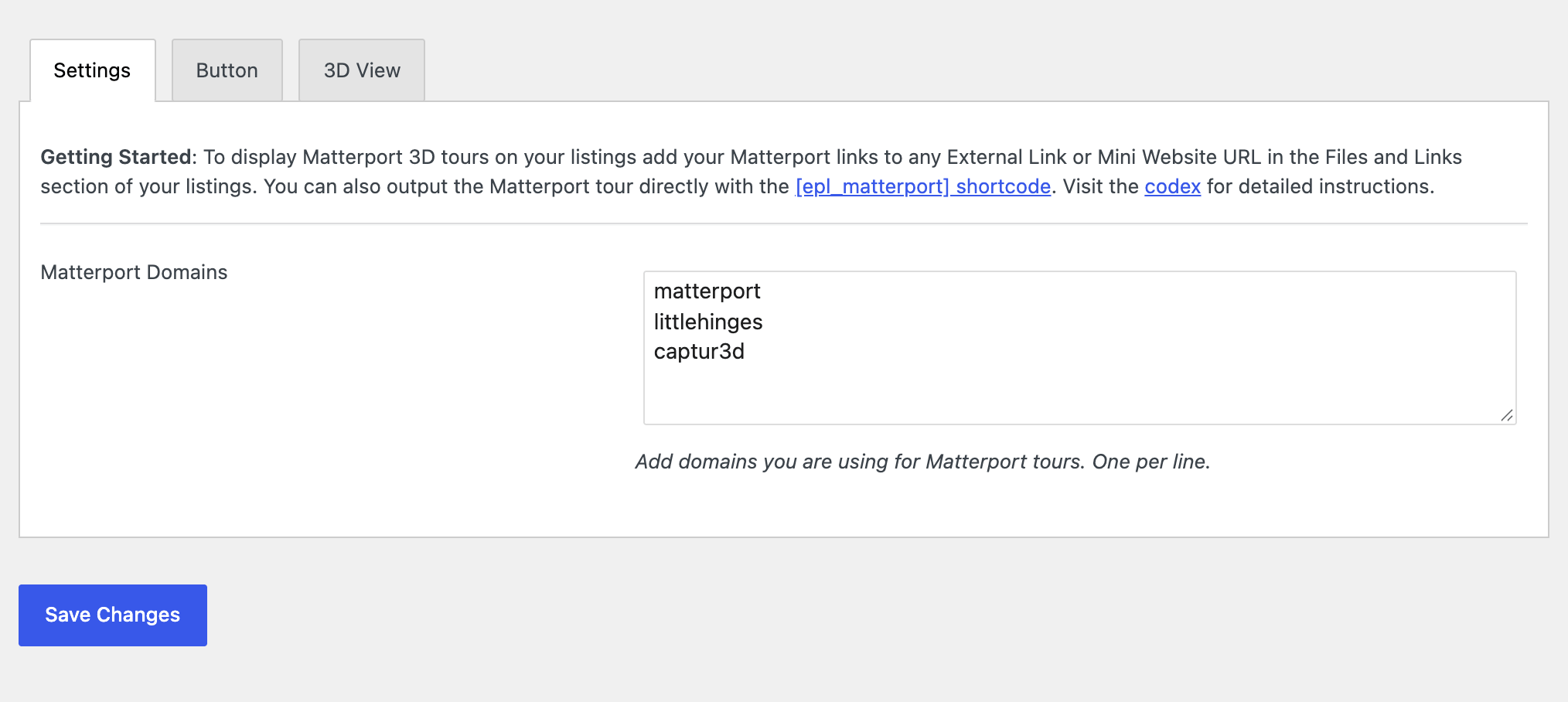
Matterport Domains
The extension treats a link as a 3D tour when it contains one of these words, one per line. Default:
matterport
littlehinges
captur3d
Add the domain of any other tour service you use, for example the domain your photographer hosts tours on. Keep entries specific: a short word like com would match every link.
captur3d is spelt without an "e". That's the Captur3d tour service.
Which fields are checked
External Link, External Link 2, External Link 3, Mini Website URL, Mini Website URL 2 and Mini Website URL 3 in the Files and Links section of each listing. When a link is a tour, the extension shows it as a tour instead of the usual link button.
Button tab
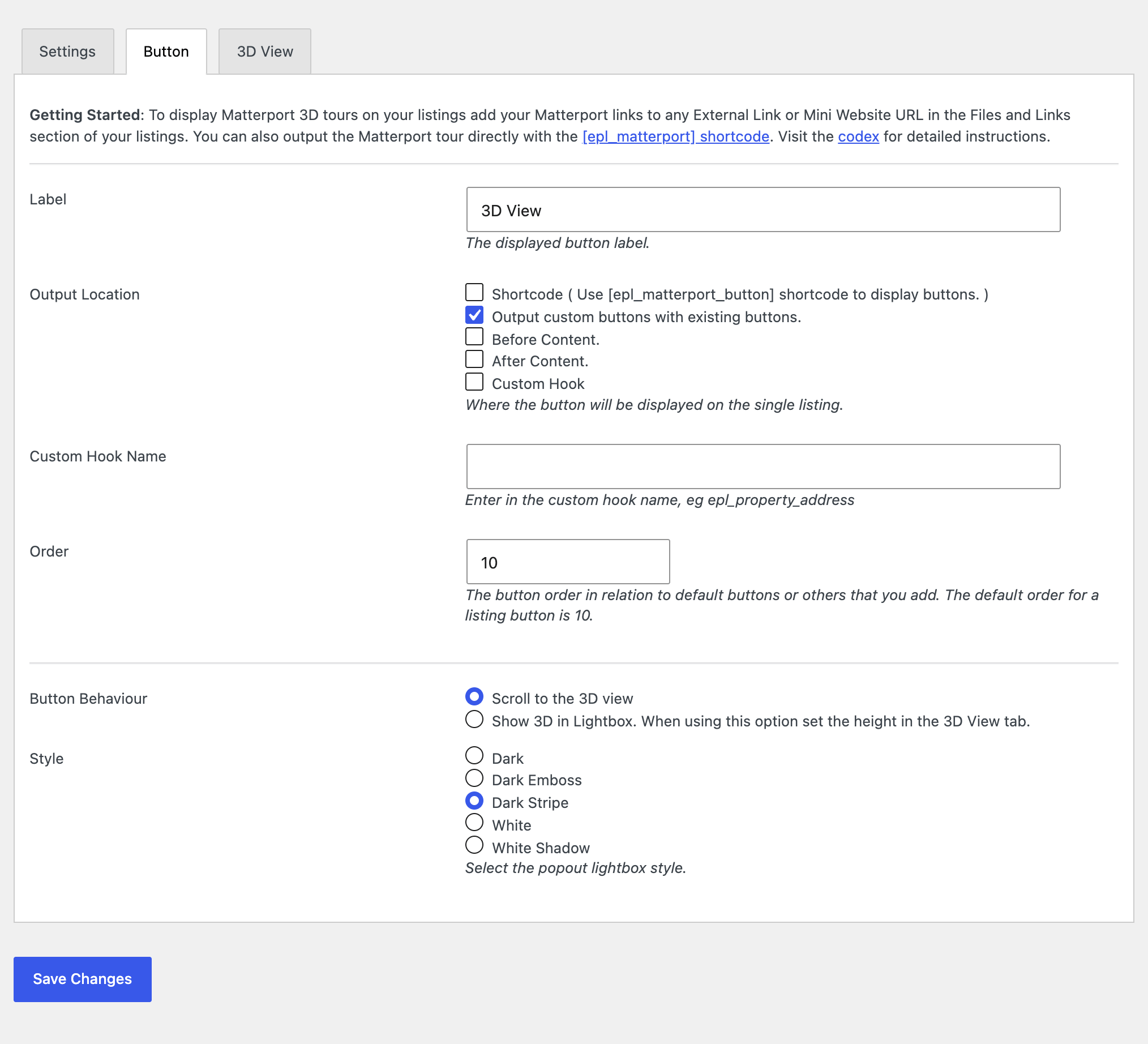
| Setting | What it does | Default |
|---|---|---|
| Label | The button text. | 3D View |
| Output Location | Where the button appears on the single listing. Tick one or more: the [epl_matterport_button] shortcode only, with the listing's existing buttons, before the content, after the content, or a custom hook. |
With existing buttons |
| Custom Hook Name | Used when Output Location includes Custom Hook, for example epl_property_address. |
(empty) |
| Order | Position among other output on the same hook. EPL's own listing buttons use 10. | 10 |
| Button Behaviour | Scroll to the 3D view, or Show 3D in Lightbox. | Scroll |
| Style | The lightbox style: Dark, Dark Emboss, Dark Stripe, White or White Shadow. | White |
There's one button per tour. If a listing has two different tours, it gets two buttons.
3D View tab
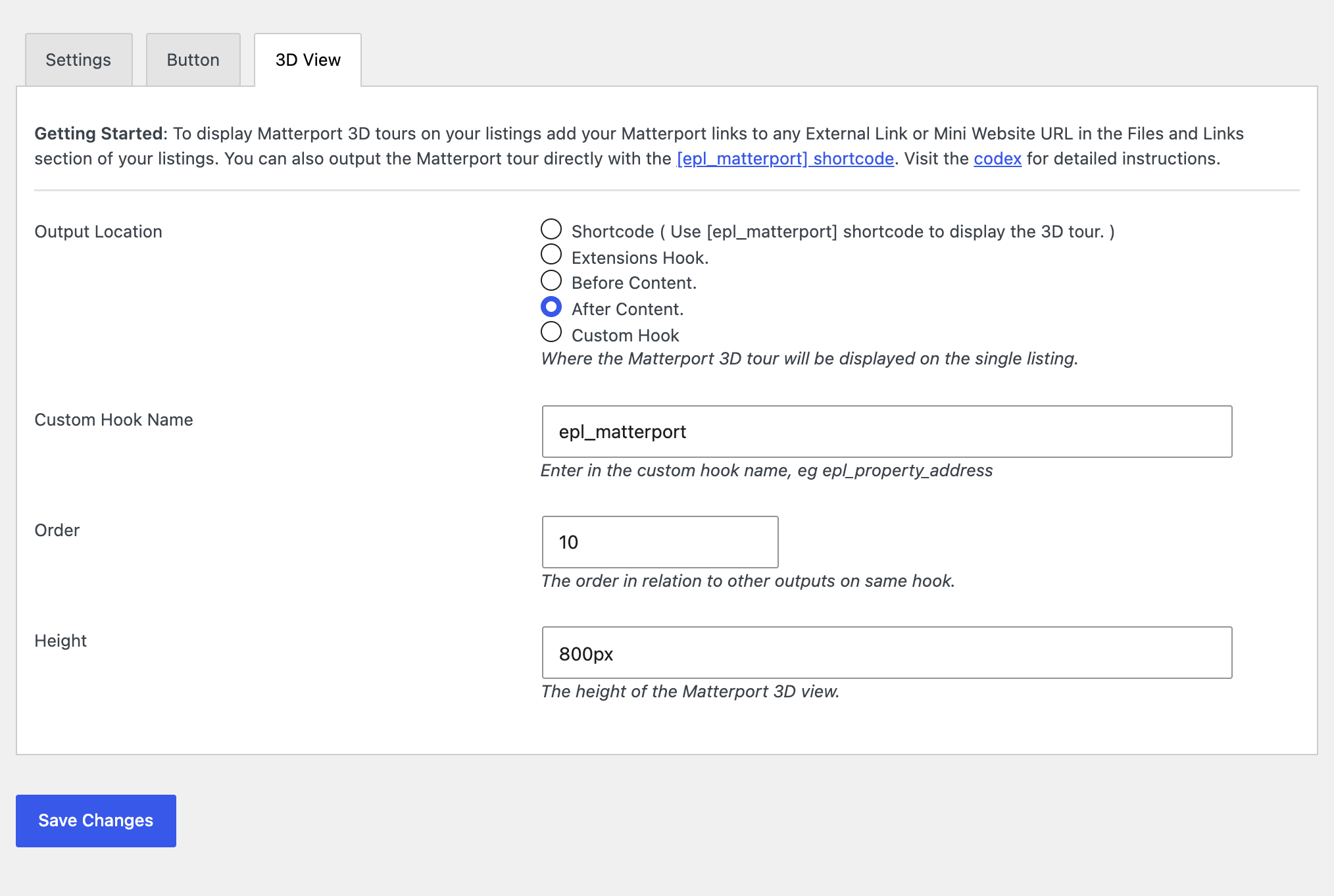
| Setting | What it does | Default |
|---|---|---|
| Output Location | Where the tour is displayed: Shortcode (only where you place [epl_matterport]), the Extensions Hook (epl_single_extensions), before the content, after the content, or a custom hook. |
Extensions Hook |
| Custom Hook Name | Used when Output Location is Custom Hook. | (empty) |
| Order | Position among other output on the same hook. | 10 |
| Height | The tour height, for example 500px or 80vh. Also the default height for the [epl_matterport] shortcode, and the height used in the lightbox. |
500px |
The button needs the tour on the page. With Output Location set to Shortcode, place [epl_matterport] on your listing template, or the button has nothing to scroll to or open.
See also: [epl_matterport] Shortcode and FAQ and Troubleshooting.